May 12, 2021 • 3 min read
Install X2Go
Overview
x2Go enables you to access a remote machine over SSH. The wiki entry provides the following overview:
“X2Go enables you to access a graphical desktop of a computer over a low bandwidth (or high bandwidth) connection. X2Go is a Remote Desktop solution, which some vendors vaguely call Remote Control. This is not to be confused with Microsoft Remote Desktop Connection, which is a competing Remote Desktop solution and protocol. With X2Go, you mainly access Linux computers. The Linux computer you are accessing is the X2Go Server. (There are ways to connect to a Windows computer as well; some of them are only available with the Linux X2Go Client.)”
Ref: X2Go wiki
Requirement
A SSH connection requires a minimum of two machines. In this example the assumption is the remote machine is more powerful than the local client.
- Remote Server/Host running openssh-server
- Local Client capable of connecting to the Remote Server
- Valid credentials to connect to the remote server
NOTE: To install OpenSSH on the Remote Server
sudo apt install -y openssh-serverInstall the Remote Server Configuration
Login to the remote server and perform the following actions:
- Update packages
- Install
x2goserver
- Update the host
sudo apt update- Install the X2Goserver packages
sudo apt install x2goserver x2goserver-xsessionOptional: Install a Remote Desktop Environment
If you intend to connect to the desktop, add a lightweight desktop may be appropriate. My preference is to not waste bandwidth by connecting to the desktop.
- Install minimal desktop e.g.
xfce - Select
lightdm
- Install the minimal desktop
sudo apt-get install xubuntu-coreInstall the Client Configuration
On the local host perform the following actions
- Install the x2goclient package
sudo apt install x2goclient- To run the client and connect to the remote host
x2goclient- Test SSH connectivity between the client and remote server
From the local client, connect to the remote server (x.x.x.x)
ssh [USER]@x.x.x.xConnection should be sucessful. Exit the SSH session.
Remote Host: Desktop Example
Setting up a remote connection requires some information
- Host: IP of the remote host
- Login: SSH user
- SSH Port: 22
- Select the RSA/DSA key
- Session Type:
XFCE
NOTE: The session type is based on the available config. XFCE Desktop configuration was installed earlier, however it is also possible to connect other desktop type.
An example configuration should look similar to the following:
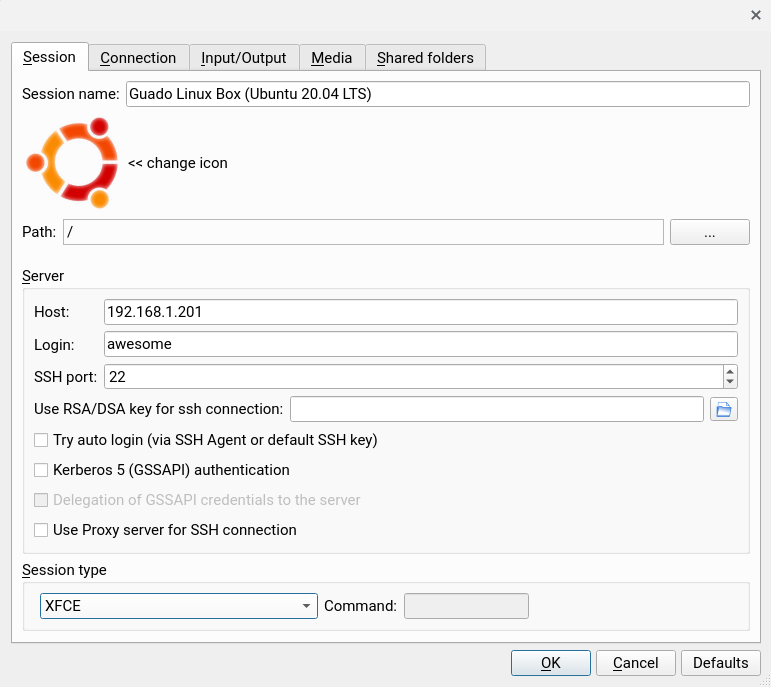
NOTE: In the above configuration the application icon has been amended. To replicate this effect
- Search and download the appropriate application icon
- Click the icon next to the text « change icon
- Amend the X2Go app icon e.g. Ubuntu, Debian, Windows, etc
At this stage amend the session details as required (i.e. connection speed, display, sound etc)
Remote Host: Single Application Example
An alternative to showing the desktop is to just display a running program.
To achieve this amend the Session type configuration to single application.
An example configuration should look similar to the following:
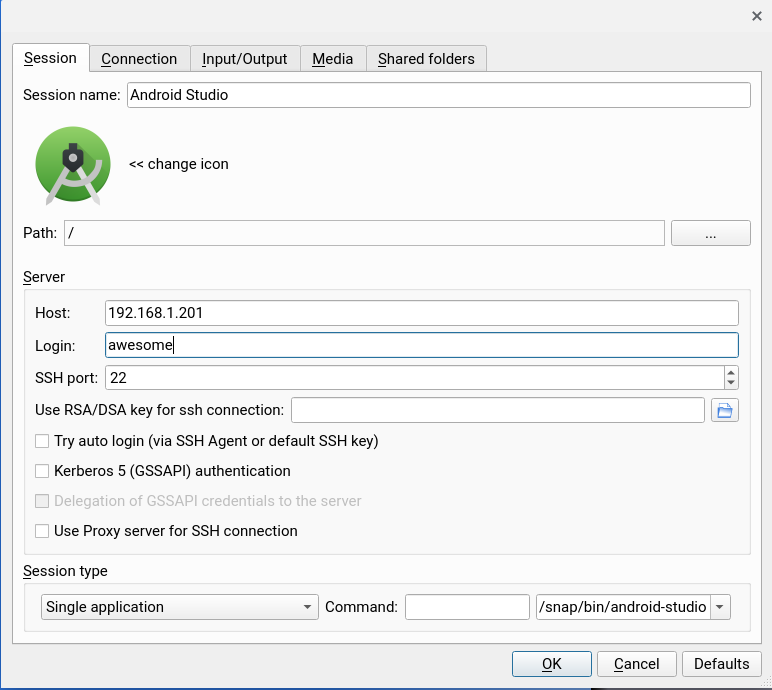
The key is adding the appropriate path and executable. Amend the session details as required (i.e. connection speed, display, sound etc).
| Application | Example X2Go Path |
|---|---|
| Android Studio | /snap/bin/android-studio |
| Tor | /opt/tor-browser_en-US/Browser/start-tor-browser |
| Chrome | /usr/bin/google-chrome-stable |
Android Studio - Flutter/Dart Settings
- Dart SDK Path:
/home/$USER/snap/flutter/common/flutter/bin/cache/dart-sdk- Flutter SDK Path:
/home/$USER/snap/flutter/common/flutterWhen the application is run, only the application is displayed. The desktop is not shown in this configuration which may be preferable dependent on your situation.