Dec 23, 2020 • 3 min read
Install Oh my bash
Oh My Bash is a delightful community-driven framework for managing your bash configuration, and an auto-update tool so that makes it easy to keep up with the latest updates from the community.
At the end of this blog post, your command line should look similar to the image below:
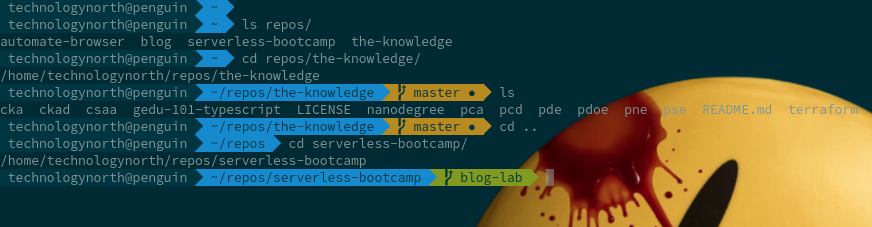
In the image:
- Blue: indicates a non
gitbased directory/subdirectory - Green: indicates a
gitbased directory in sync with the remote - Orange: indicates a
gitbased directory with changes to be applied
Bash Configuration
- Configure Zsh/Bash shell with user based themes to make the command line visually appealing.
Install system fonts
-
Fonts can be downloaded from here - follow example below to install them on host (install.sh)
NODE_TYPE // textwget https://github.com/Lokaltog/powerline/raw/develop/font/PowerlineSymbols.otf https://github.com/Lokaltog/powerline/raw/develop/font/10-powerline-symbols.conf sudo mv PowerlineSymbols.otf /usr/share/fonts/ sudo fc-cache -vf sudo mv 10-powerline-symbols.conf /etc/fonts/conf.d/Note: This configuration can be applied to local terminal setting and also the cloudtop SSH connection.
Package Configuration
-
Update your machine
NODE_TYPE // textsudo apt -y update && sudo apt -y upgrade -
Install the powerline fonts
NODE_TYPE // textsudo apt-get install fonts-powerline
Install Oh-My-Bash
-
Install oh-my-bash
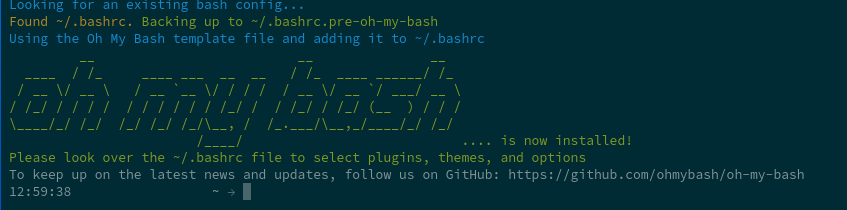
NODE_TYPE // bashbash -c "$(curl -fsSL https://raw.githubusercontent.com/ohmybash/oh-my-bash/master/tools/install.sh)"The command line will update to look like below:
-
Add agnoster theme
NODE_TYPE // textgit clone https://github.com/agnoster/agnoster-zsh-theme.git ~/.oh-my-bash/custom/themes/agnoster -
Make the following amendments in your
"~/.bashrc"configuration file and amend the theme to use AgnosterNODE_TYPE // bash#echo $RANDOM_THEME #OSH_THEME="font" OSH_THEME="agnoster"NOTE: If the
RANDOM_THEMEis set, it will load a random theme each time oh-my-zsh is loaded. -
Reload the environment
NODE_TYPE // bashsource ~/.bashrc -
Your command line should now look like below:
NOTE: The command line will now recognize git folders and distinguish between these and normal folders
Configure ChromeOS
ChromeOS Post v84.4147.136
-
Exit the Crosh browser tab
-
Restart the Terminal window
On Restart of the terminal will be using the updated font selection and theme!
ChromeOS - pre v84.4147.136
-
In the browser, open a terminal tab and press
NODE_TYPE // bashCTRL-ALT-T -
From the terminal tab, alter the look/behaviour by pressing
NODE_TYPE // bashCTRL-SHIFT-P -
Find the appearance settings, then go to the font-family and enter your new font option (list of fonts is available here) e.g.
- “Liberation Mono”, monospace
-
Now select the custom-css (URI) entry and change the default “https://example.com/some/file” contents to the following:
NODE_TYPE // bashhttps://cdn.jsdelivr.net/gh/wernight/powerline-web-fonts@ba4426cb0c0b05eb6cb342c7719776a41e1f2114/PowerlineFonts.css -
Exit the appearance setting screen
-
Exit the Crosh browser tab
-
Restart the Terminal window
Restarting the terminal will update the font selection and theme!