Mar 01, 2026 • 3 min read
Nix Ollama with Zellij
A quick blog post on using nix with Ollama and Zellij.
In a previous post I demonstrated a quick Zellij environment setup using Nix.
Building on from that post, you can run your favourite command line tools. For example, if you want to run Ollama you will typically need multiple screens in your setup. Instead you can set up a configuration file for Zellij to handle the window layout. Doing this gives a simple setup command and saves you valuable time and effort.
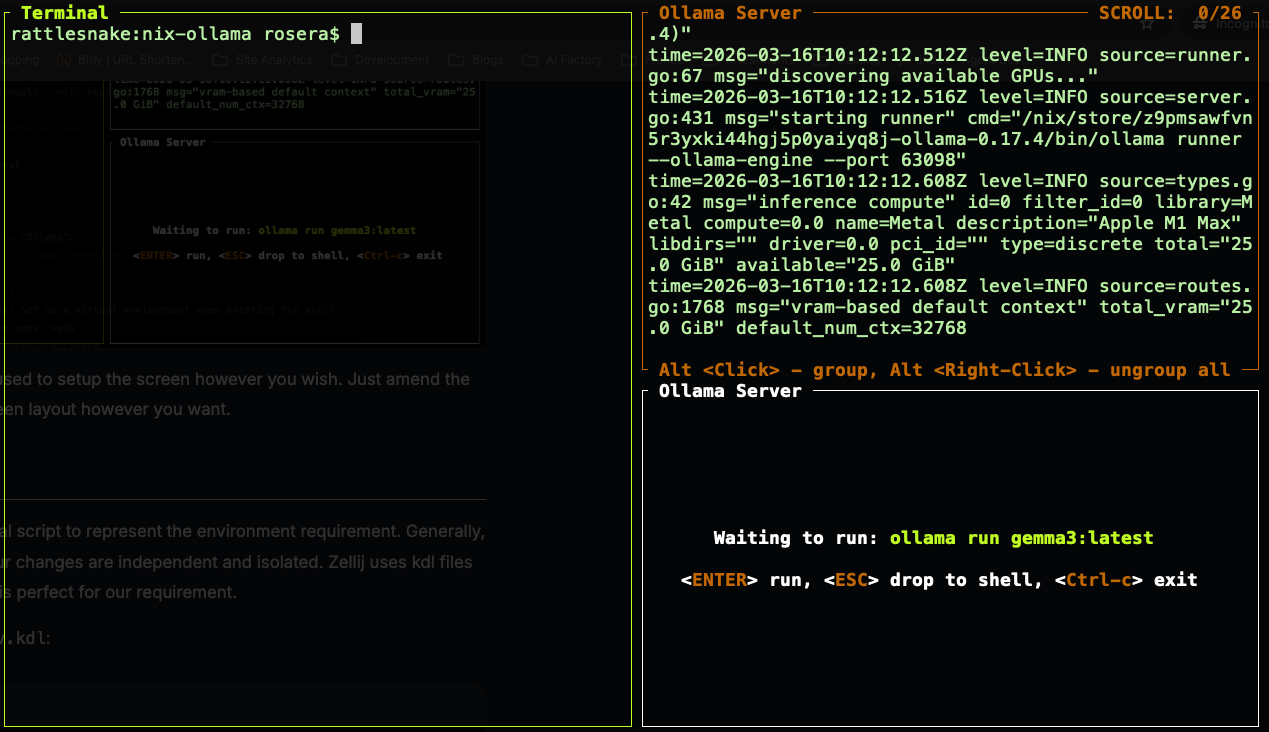
You can amend the configuration used to setup the screen however you wish.
Just amend the dev.kdl script to realign your screen layout however you want.
Nix Scripts
As a reminder we define an external script to represent the environment requirement. Generally, try and externalise scripting so your changes are independent and isolated. Zellij uses kdl files to represent screen layouts which is perfect for our requirement.
-
Lets create a zellij layout script
dev.kdl:NODE_TYPE // bashlayout { tab name="Ollama" focus=true { pane split_direction="vertical" { /* GENERAL TERMINAL */ pane { name "Terminal" } pane split_direction="horizontal" { /* SERVER TELEMETRY */ pane command="ollama" { name "Ollama Server" args "serve" } /* MODEL RUNNER */ pane command="ollama" { name "Ollama Server" args "run" "llama3.2" /* args "run" "gemma3:latest" */ start_suspended true } } } } }In the above
dev.kdlscript we create a new layout.The layout request a vertical split, giving a two pane layout. It then requests the second pane layout to be split into two. The result is three panes.
We assign command activities to two of the panes.
- First run
ollama serve. - Second run
ollama run llama3.2when the user presses the enter key.
To call our script we need to use a bit of nix magic
NODE_TYPE // outputlet # External Script: This reads './dev.kdl' and puts it into a binary named 'dev-kdl' # The layout is then set as a dependency for the `zellijLayout` which will be used in the script. scriptZellijLayout = pkgs.writeText "dev.kdl" (builtins.readFile ./dev.kdl); zellijLayout = pkgs.writeShellScriptBin "dev-zellij" '' ${pkgs.zellij}/bin/zellij --layout ${scriptZellijLayout} ''; in - First run
-
Create a
shell.nixand add the following script:NODE_TYPE // nixwith import <nixpkgs> {}; let # External Script: This reads './dev.kdl' and puts it into a binary named 'dev-zellij' scriptZellijLayout = pkgs.writeText "dev.kdl" (builtins.readFile ./dev.kdl); zellijLayout = pkgs.writeShellScriptBin "dev-zellij" '' ${pkgs.zellij}/bin/zellij --layout ${scriptZellijLayout} ''; in pkgs.mkShell { name = "ollama-app"; nativeBuildInputs = with pkgs; [ ollama # haskellPackages.cuda zellij zellijLayout vim ]; APPLICATION = "Ollama"; # VERSION = "ollama --version"; shellHook = '' # Optional: Set up a virtual environment when entering the shell python3 -m venv .venv source .venv/bin/activate echo "Welcome to $LANGUAGE Development Environment" $VERSION exec dev-zellij ''; }The above script calls our
dev.kdland then proceeds to setup the environment. Packages can be updated as required, so feel free to update as required. Theexec zellijcommand to ensure an orphan session is not resident on exiting the nix session. -
Run the script:
NODE_TYPE // bashnix-shell --pureRemember a pure environment tries to ignore the existing host configuration 😂 Nix will automatically look for the file
shell.nixso you dont need to added this parameter 🥰Awesome, Zellij is configured and ready to go!
-
Exit the Nix Shell
To exit, you will need to exit each screen individually.
NODE_TYPE // bashexit
Nice we now have a super easy way to run Ollama in Zellij on a Nix machine.